Ford F-150 (2009–2019) Installation
Guide Installing

--Haudio CVD9943-ZA Double DIN Head Unit

This guide assumes a double-DIN radio opening in the F-150 dash (standard for 2009–2019). You may need a dash kit + wiring harness adapter for a clean, secure installation.

Tools & Materials You Will Need:

Hand Tools:

Phillips screwdriver*1, Flathead screwdriver or plastic trim removal tools*1, Trim panel removal tool *1, Socket ratchet + sockets (typically 7mm and 8mm)* 1, Wire stripper/crimper * 1, Electrical tape / heat shrink * 1;

Installation Accessories

Double-DIN dash kit for Ford F-150 (09–19), Wiring harness adapter (factory to aftermarket), Antenna adapter (Ford to standard), Steering wheel control adapter (optional), Cable ties, Haudio CVD9943-ZA Components.

The stereo package includes:

CVD9943-ZA Car Stereo* 1; Power Cord *2;4-pin USB-S Cable *1;6-pin USB-S Cable *1;GPS Antenna *1;20-pin RCA Antenna *1;8-pin RCA Antenna *1;Mounting Screws *;User Manual *1;Brackets *2;Warranty Card *1;Rear Camera *1;Rear Camera Input;Reverse Wire *1;Cable *1

Haudio CVD9943-ZA Car Stereo User manual

Install Step By Step

1, Safety First — Disconnect Power

  • Put the truck in Park and turn the ignition OFF.
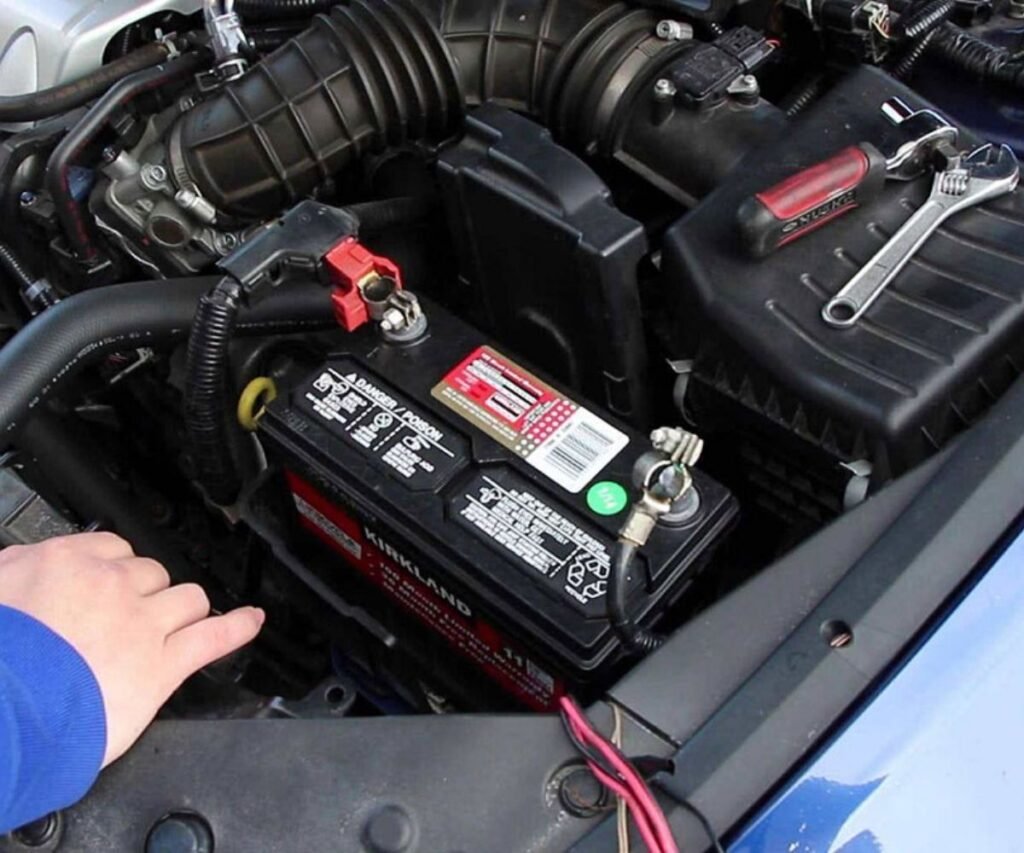
  • Open the hood and disconnect the negative battery terminal. This prevents shorts and protects vehicle electronics.

2, Remove Factory Dash Trim

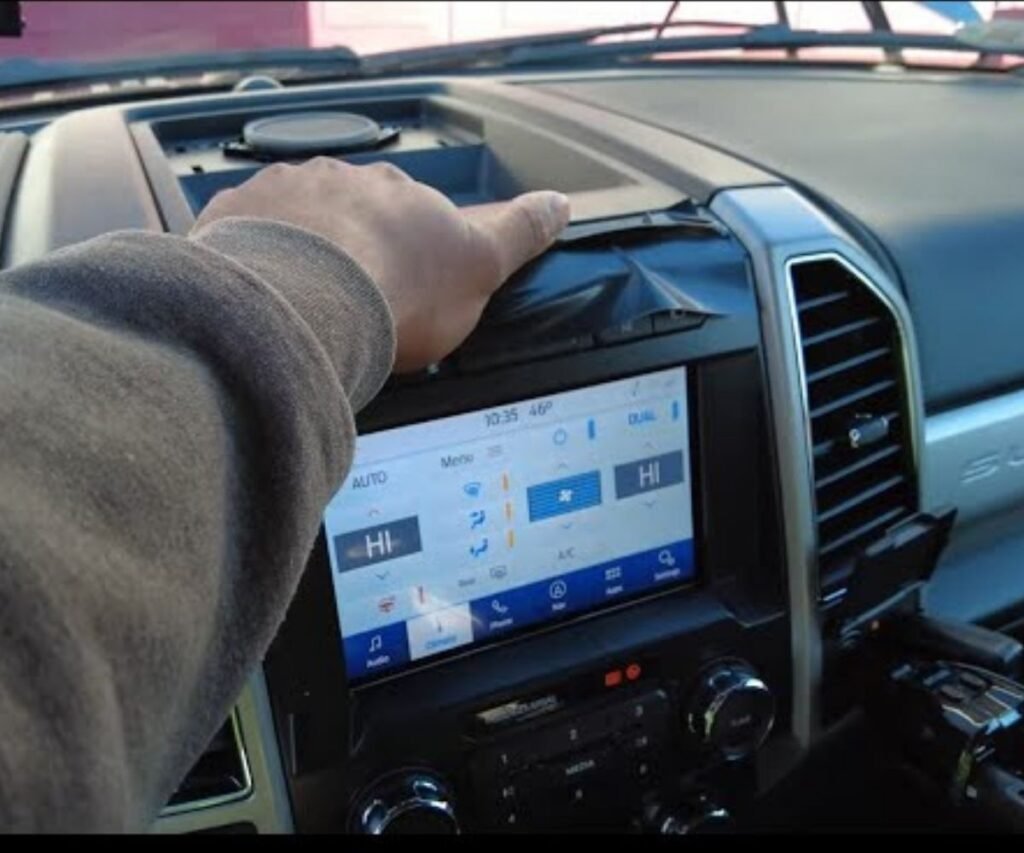
  • Use a plastic trim tool to gently unsnap the side trim panels around the stereo area.
  • Carefully peel panels outward — avoid breaking clips.
  • Take your time; these panels are fragile and can crack if pried too hard.

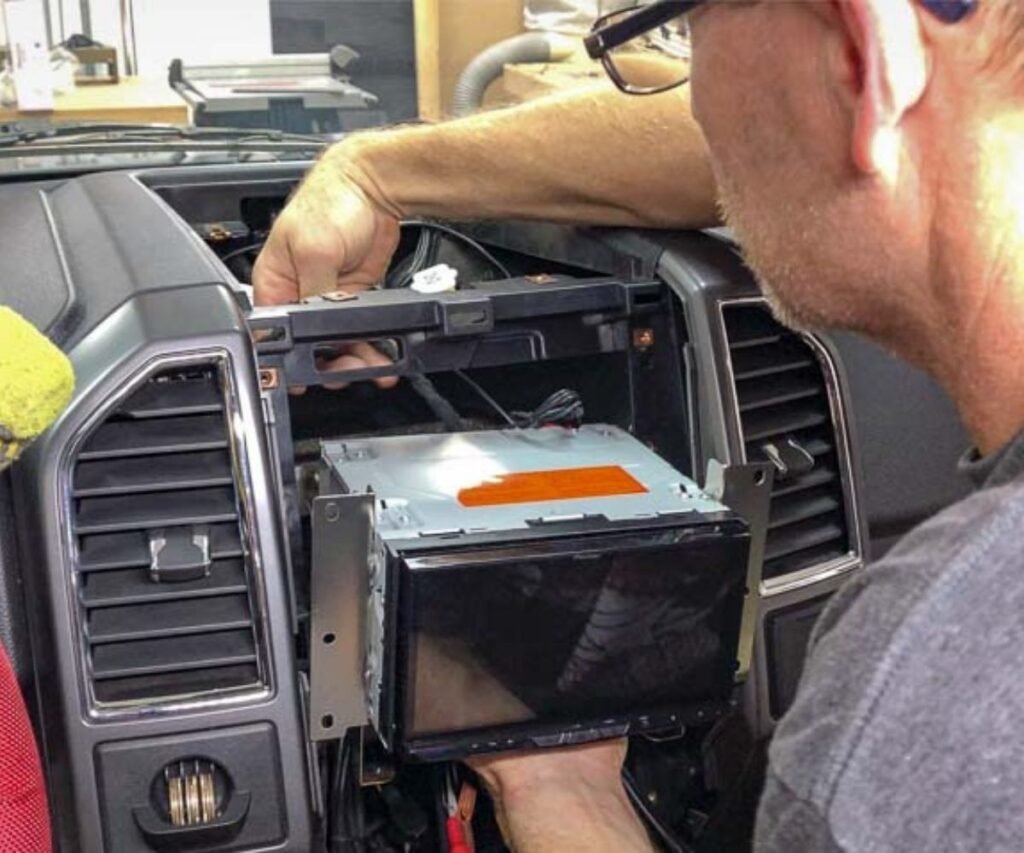
3, Remove the Factory Head Unit

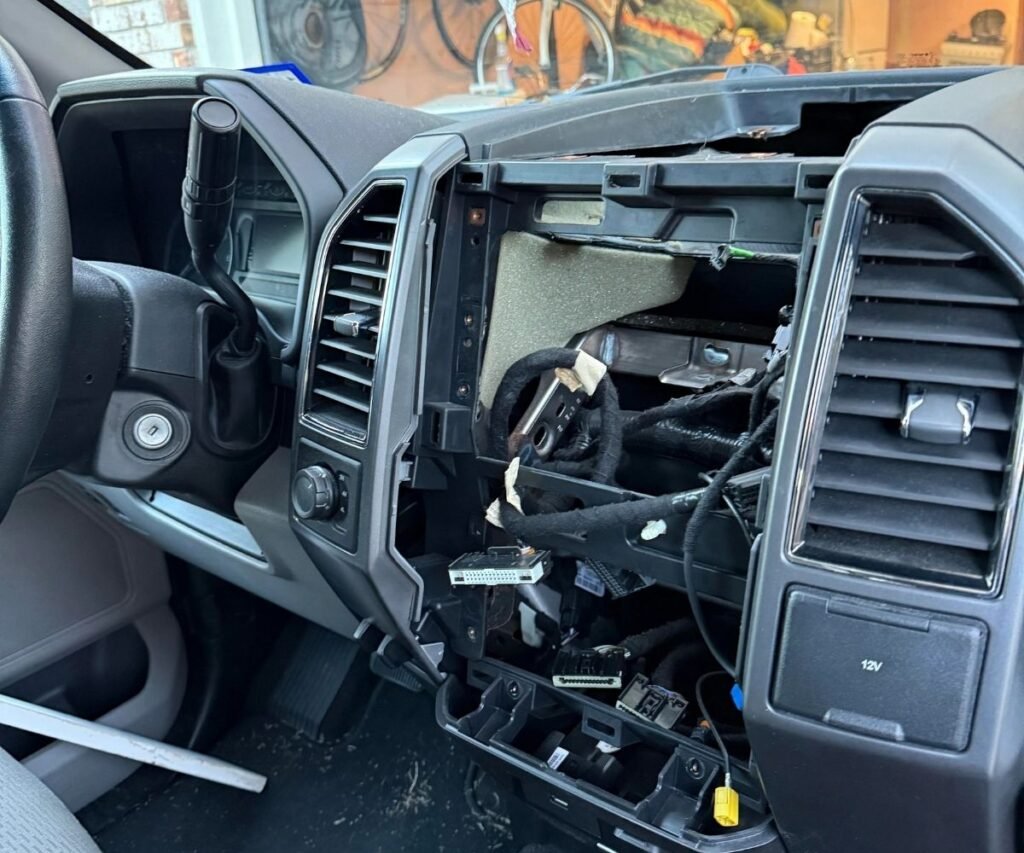
  • Locate and remove screws securing the stock stereo (Ford uses Phillips or metric screws).
  • Once screws are out, pull the radio forward evenly.

Unplug all connectors: Factory wiring harness, Antenna cable, Any accessory plugs (USB, AUX, etc.)

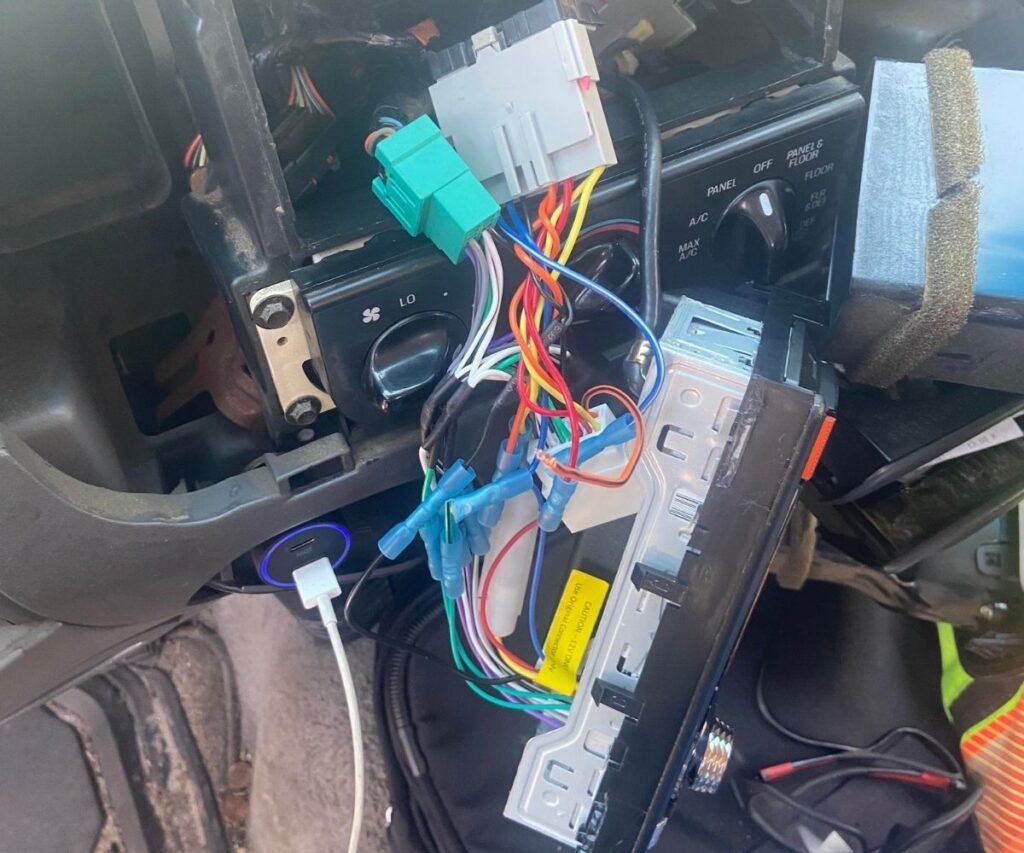
4, Prepare the Wiring

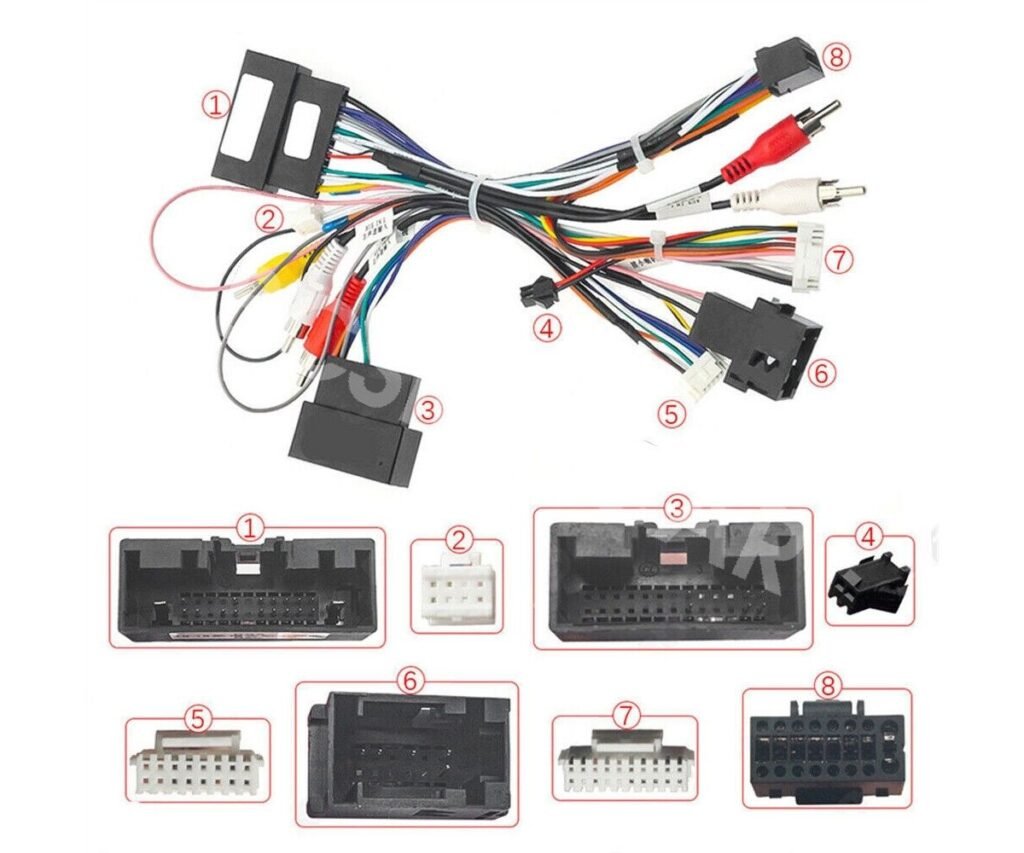
Harness Adapter: You should use a Ford-to-aftermarket wiring harness adapter so you don’t cut factory wires.

Match color-coded wires:

  • Red = ignition power
  • Yellow = constant power
  • Black = ground

Speakers = grouped in pairs

Secure connections with crimp connectors or solder + heat shrink.

 Antenna Adapter: Connect the Ford antenna through a Ford antenna adapter to the Haudio unit.

Optional: Steering Wheel Controls: If your F-150 has steering controls and you want to retain them, a SWC interface is highly recommended.

5, Mounting the Haudio Unit

  • Attach mounting brackets included with the stereo onto the CVD9943-ZA unit.
  • Insert the stereo into the double-DIN dash kit frame.
  • Place the assembled dash kit + head unit into the dash opening.
  • Secure with the factory mounting points or provided screws.

6, Reconnect Wiring

From back of the Haudio:

  • Plug harness adapter into unit and vehicle harness
  • Connect antenna adapter
  • GPS antenna — route up toward the windshield for best reception.
  • Rear camera — connect cable to camera input; run reverse trigger wire to reverse light circuit.
  • Connect USB and auxiliary cables as desired.
  • Make sure all connections are snug and secure.

7, Test Before Final Assembly

Reconnect the negative battery terminal.Turn the vehicle on and verify:

  • Unit powers up
  • Touchscreen responds
  • CarPlay/Android Auto works
  • GPS receives signal
  • Reverse camera engages when in Reverse
  • Audio plays and steering control buttons (if connected) work

If anything doesn’t work, turn the vehicle OFF before adjusting wiring.

8, Reassemble the Dash

Once testing is successful:

  • Carefully reinstall the dash trim panels.
  • Press each clip gently until you hear a snap — do this evenly to avoid misalignment.
  • Ensure all panels are flush and secure.

Tips & Best Practices

  1.  Dash Kit Matters: A good dash kit for the F-150 ensures a factory-like fit and avoids gaps. Some kits even retain HVAC controls while allowing double DIN units.
    Sound of Tri-State
  2. Harness Adapter Saves Trouble: Using a wiring adapter preserves the original Ford wiring and can easily be reversed if needed.
  3. Camera Trigger Wire: Connect the reverse trigger wire to the truck’s reverse light circuit. This makes the screen automatically switch to the backup camera when backing up.
  4. Avoid Sharp Wire Bends:Route cables cleanly and secure with cable ties to avoid rattles and possible damage.
  5. Always Test Before Final Reassembly

By completing this install, you have equipped your F-150 with a modern Android 13 system featuring:

  1. Wireless Apple CarPlay & Android Auto
  2. Navigation GPS
  3. DSP audio tuning
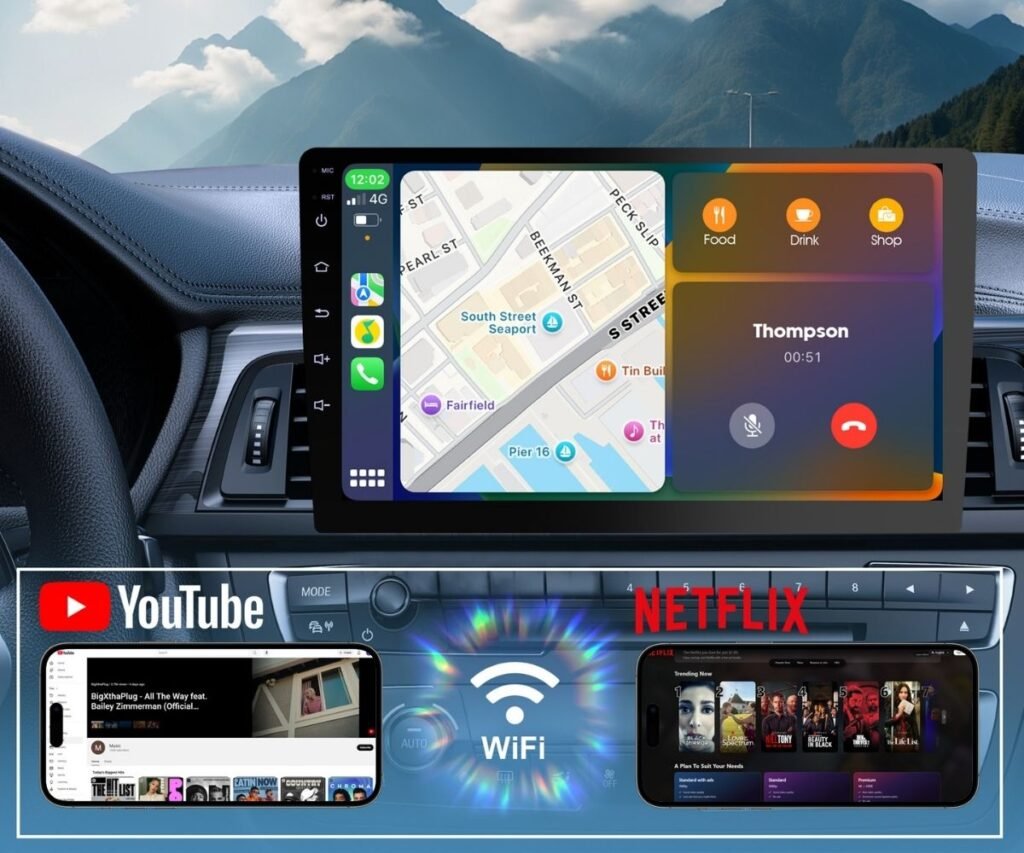
  4. Bluetooth & Wi-Fi connectivity
  5. Backup camera support
  6. Steering wheel control support (if adapter used)

CVD9943-ZA

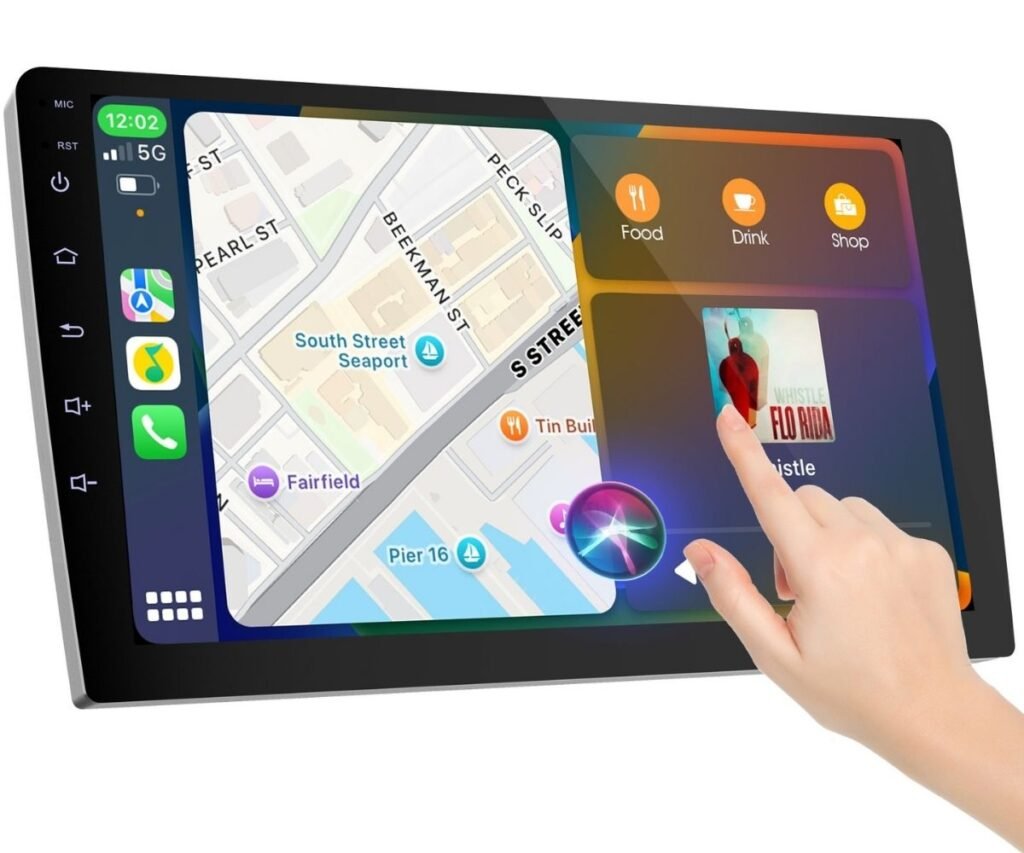
  • CarPlay, Android Auto & MirrorLink
  • Octa-Core Processor 
  • GPS Navigation
  • Advanced DSP, EQ & ASP Audio Settings
  • Voice Control Support
  • 720P AHD Rearview Camera 
  • Bluetooth 5.1 & WiFi 6 
  • FM, AM & RDS Radio Support
  • Split-Screen Multitasking Mode

Installation video tutorial

Leave a Reply

Your email address will not be published. Required fields are marked *